
Sentiment Analyzer Services deployed:

Comprehend

Lambda

API Gateway
Description of Project:
A lightweight web app that analyzes customer feedback in real time using AWS Lambda and Amazon Comprehend. Built with a clean API pipeline and a simple interface, it processes text instantly and returns clear sentiment insights for any use case.
Video Tutrorial by: Chris Saave
The Break down step by step
1. Project Architecture Overview
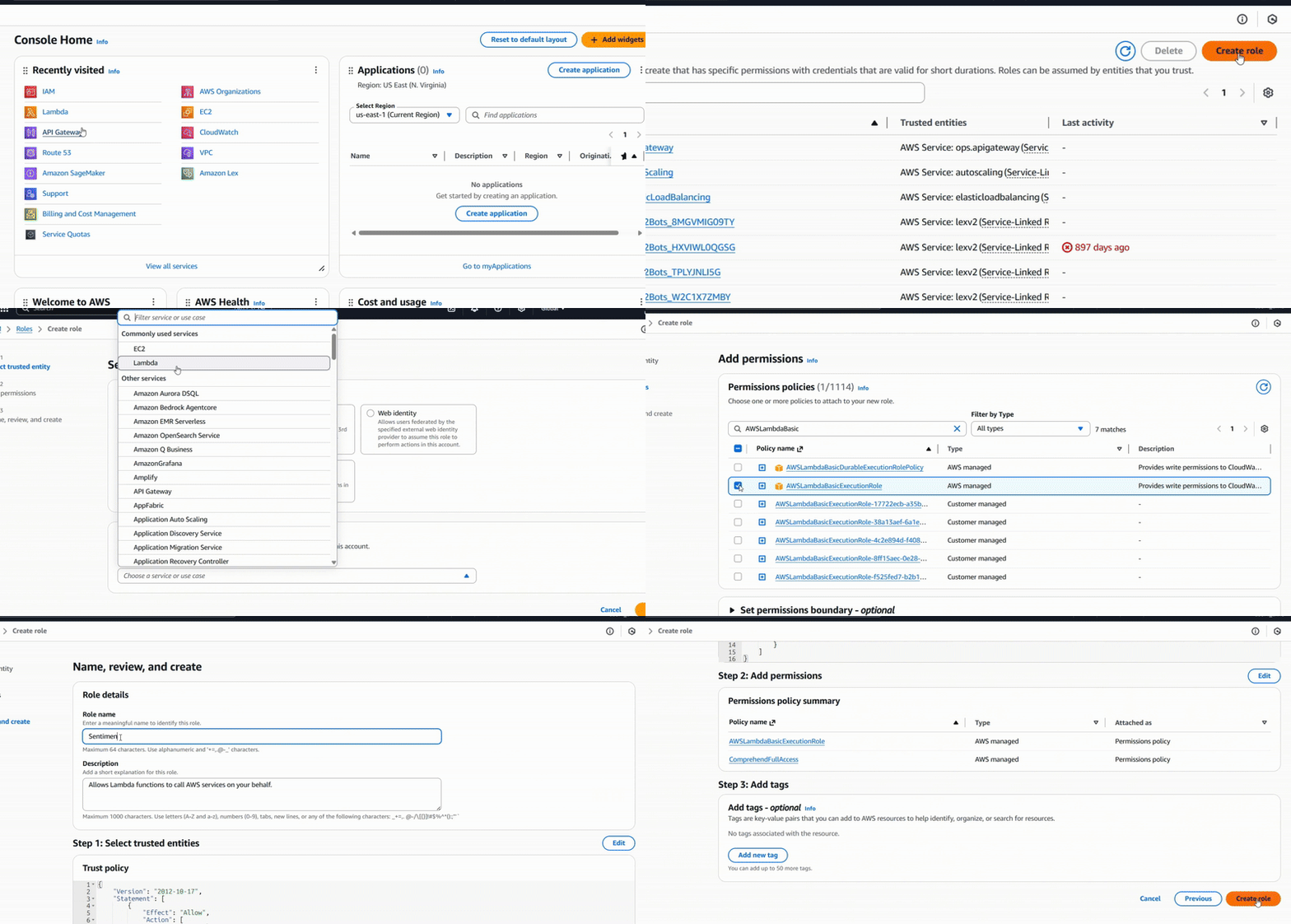
2. Create the IAM Role
- AWSLambdaBasicExecutionRole
- ComprehendFullAccess
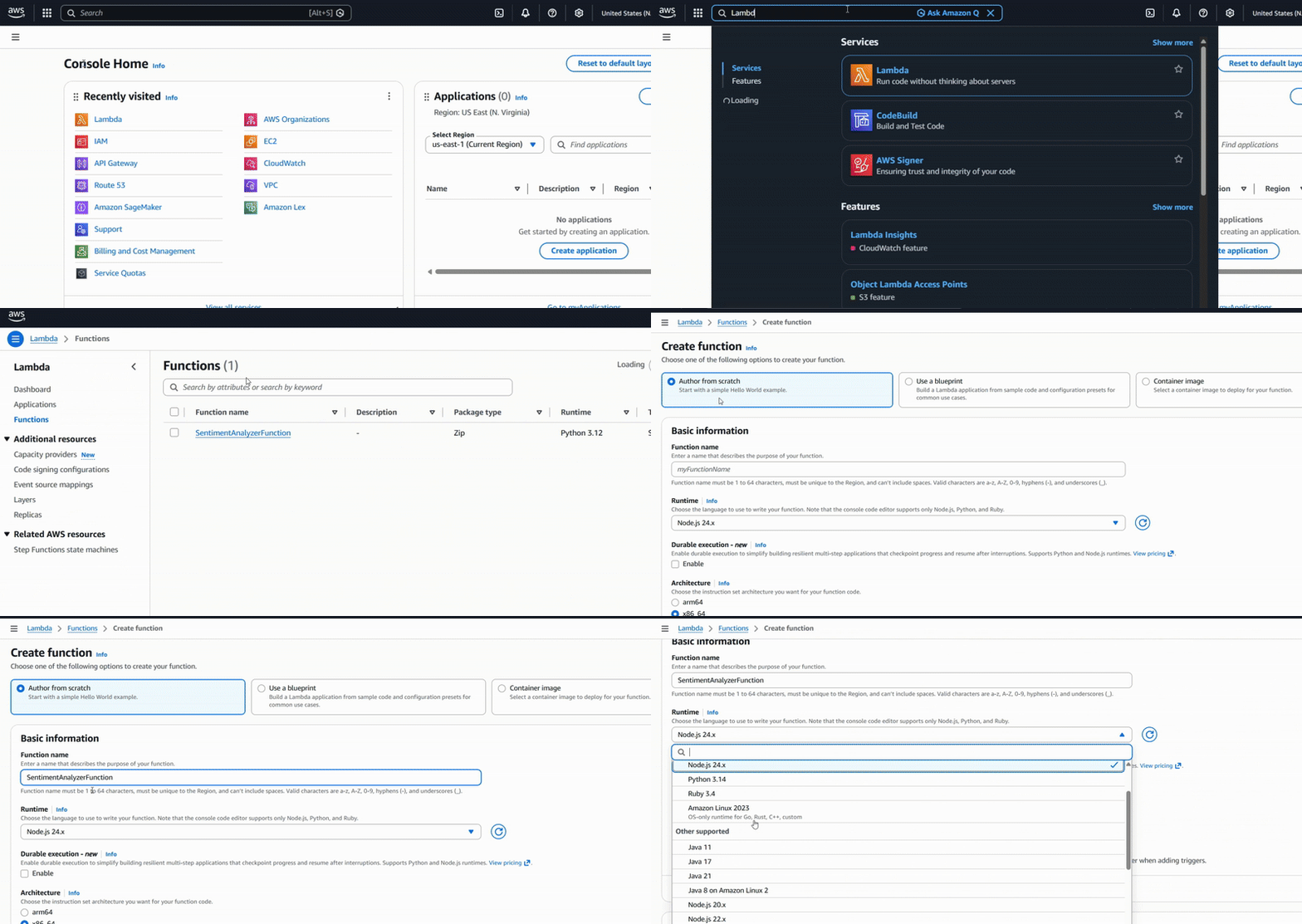
3. Create the Lambda Function
- search for Lambda service
- Click Create Function
- Choose Author from scratch
- For the function name you can put: SentimentAnalyzerFunction
- For Runtime select either Python 3.11 or 3.12
- Then click on the Change default execution role
– Select Use an Existing Role
– Select the role IAM role you just created (your role name may be different than mine) The one I created was LambdaComprehendRole (the words are usally all together. - Press Create Function
- Dismiss any pop ups that may come up. (If any)
- Scroll down to the Code source area and click on your lambda_function.py (this is where you’re going to put in the following code)
- Delete the sample code that is in there already.
- Replace it with the source code with the following code:
We can now test our source code. We want to make sure it works. We will check it internally.
12. Press the Blue Test Button on the left ( or you can press on windows Ctrl + Shift + I)
A pop up will appear on top asking you to Select test event
13. Select Create new test event
14. On the right, you will now start filling out the test event.
Event Name: Test Event (you can name it which ever you want)
Leave everything else default or how it is but change the Event JSON.
*If you ever get an Invalid JSON, check your “” quotations, they may have been curly instead of straight. JSON only accepts straight quotations.
Replace the sample code with this:
15. Press the blue button Save (You should see a green bar on top that says The test event “Test Event” was successfully saved.
16. Scroll down and press the blue Test button again (Ctrl+Shift+I)
You should see your code run and the OUTPUT at the bottom (next to PROBLEMS) say:
A status code of 200 and a sentiment, like “Positive” or “Negative” or even “Mixed”.
That’s a great sign your code is working!
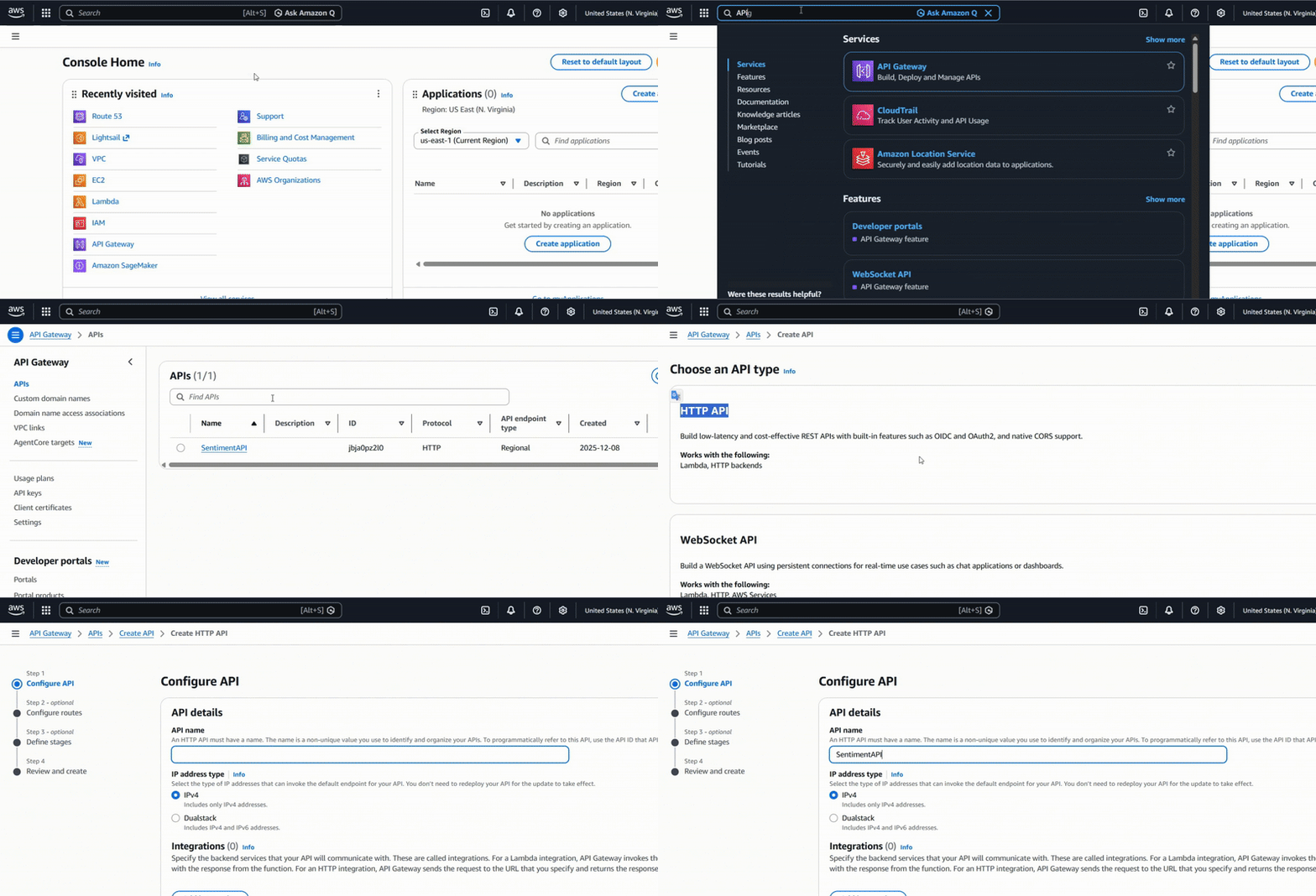
4. Create an API Gateway
- Search for API Gateway
- Click Create API
- We will select to work with an HTTP API, press Build
- Name your API Name: SentimentAPI (no spaces)
- Select under Integrations: Lambda
- For AWS Region, choose your region
- Lambda Function: choose the function SentimentAnalyzerFunction
- Version choose: 2.0
- Press Next
- Press Add route
- Method: POST
- Resource Path: /sentiment
- Integration target: SentimentAnalyzerFunction.
- Press Next
- Click Add stage, name the stage prod
- Turn off the toggle for Auto-deploy (this caused me issues later when I had it on auto deploy) You can always change this later.
- Review everything and then press Create
(You will see a green bar at the top that says Successfully created API SentimentAPI) - Click CORS (on the left side panel under Develop)
- For Access-Control-Allowed origins put: * (Literally the star above the number 8 on your keyboard) and press Add
- In Access-Control-Allow-Headers put: content-type
then Press Add - Allowed methods, select: POST and OPTIONS
(Add them both)
Press Save - Now press Deploy and select the API stage prod we created earlier (this is important) then press Deploy again.
Note the invoke URL
* You can find the invoke url in your API Gateway > Stages (under Deploy) > Select your stage (prod) > look under Stage details.
This is important because we will need to place this link in our up and coming HTML file for our website. Store this somewhere safe. (HTML how to’s coming in the next steps.)
5. Test the API in Postman
We are going to test the connection of our API with postman.
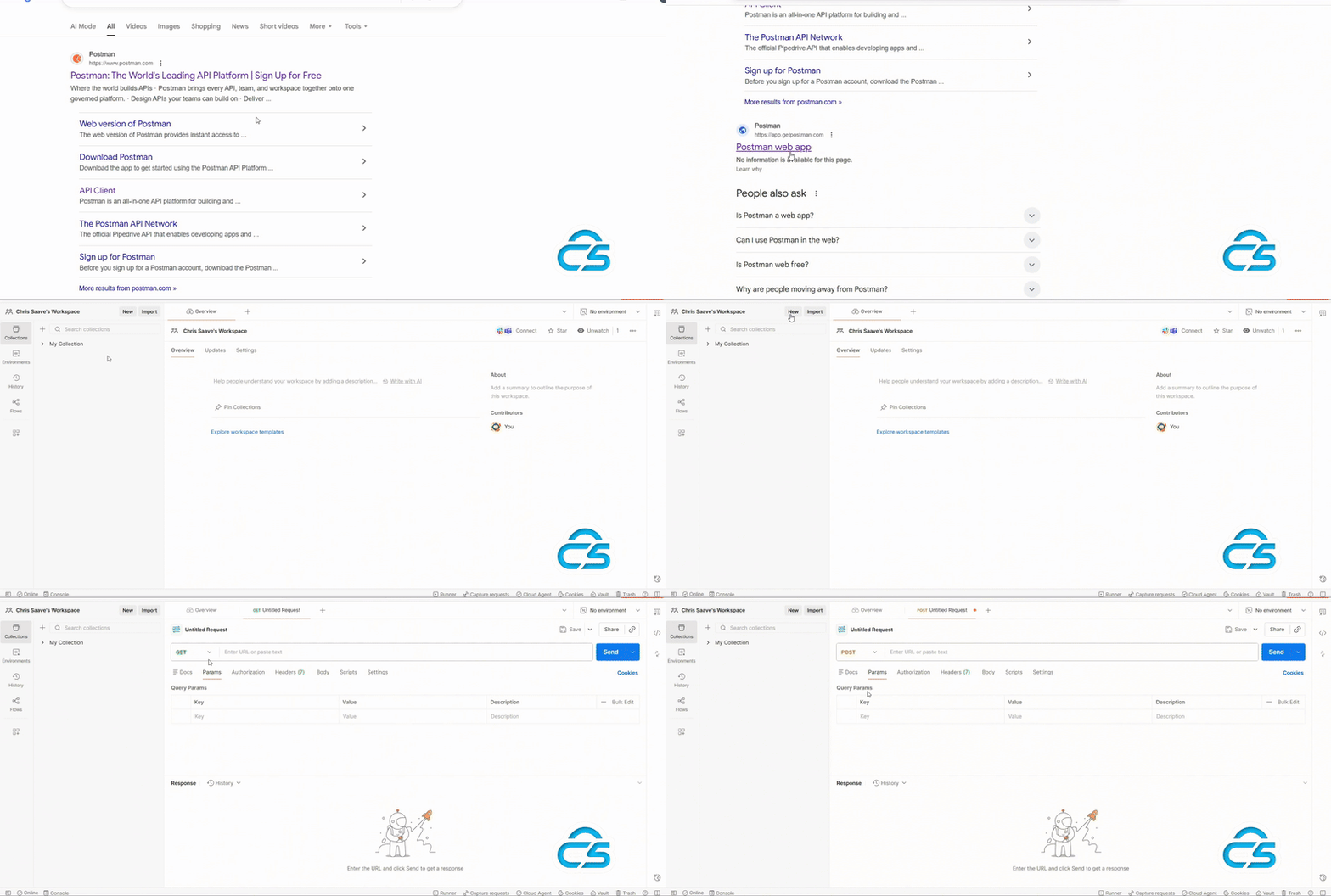
- Google search Postman Web App
- Once you sign in, create a workspace
- In your work space, click new in on the top left, next to import.
- Select HTTP
- Change the GET to POST
- Insert the Invoke URL into the “enter URL or paste text bar. (API Gateway > API > Press the name of your API (sentimentAPI) > Stages (under deploy) > Select stage > under Invoke Url
- Press the Body tab, and select raw, then make sure JSON is selected
- Input the following JSON code down below:
9. Press Send
At the bottom you should see a status code of 200 OK along with results that say sentiment, Mixed, Positive, Neutral, or Negative. Any of those depending on what you put as the customer’s review in the JSON, will work.
It will give a percentage of each section.
Congrats if you got Postman to work! That means your backend is correct! All that hard work! Sweet!
6. Build the Frontend
Now we are going to create the frontend or also known as the website, so we can show off our backend work and try it out!
- Open your favorite coding platform, VSCode or notepad, any will do. For ease and simplicity, we are going to use notepad.
- Once you have notepad open, input this HTML code below into it:
- Now note, looking at the code I left a BOLD section in there for you to replace. JUST THE BOLD. In there you need to replace YOUR Invoke URL with your own Invoke Url. (above are instructions on how to find it. Sec.5 bullet 6.) So there, you’re going to place your real /sentiment end point. Put it between the quotation marks ” “.
3. After replacing with your url, we are going to save it. Give the file the name: sentiment.html
4. Press Save
You can save this on your desktop, just remember where you saved it.
Now here is where many can make a mistake and just run it from their computer. Which, it will work but you’ll get an error calling api. You don’t want that. You want a result. So we have to host the file. Let’s do it!
So we are going to…
5. Open the command prompt.
6. In the command prompt type the location where your document is and then we will run a python command to open our server to port 8080.
For example, mine is:
The above code is an example and yours will be different. This port wont be open for long on my computer. It’s only just for this tutorial.
First Line explanation: Since I saved mine on my Desktop I put cd (this kind of says lets start navigating on my computer for something) Then C: for the drive im using, then ChrisSaave for the User, then Desktop for where I saved it. Kind of like a breadcrumb trail. Hope Hensel and Gretal aren’t following this haha.
Second Line Explanation: We are calling python to help us open the server for port 8080. (Kind of like us leaving our phone on in case we get any fun texts from friends)
Now that that is explained, we NEED TO LEAVE THIS COMMAND PROMPT OPEN. For as long as we are going to sample our code or try out our site.
7. Open any web browser, google chrome lets you see the dev side if needed by pressing F12.
8. In the address bar, you’re going to put the website:
Once you open the link in your browser, you are going to see your new app! Here is now where you can test it! You will get a great result! Test it, and when it works, you will know the frontend works!
*If you get an error API, check your Cors in the AWS console. Make sure you are not just opening the file directly on your computer. Follow the steps and notes I put. I have been there and I needed to take a break out of frustration. It’s ok, we are human, and you will figure it out!
Congratulations! You made your awesome AWS Comprehend Project!
Now with this, you can take customer’s reviews and have Ai see in the blink of an eye if a review is positive, negative, neutral, or mixed.
This can help HR departments and or managing departments what people think about their service or products!
This can be even used for new tv show pilots, doctors offices, and many other ideas you can come up with!
AWS is a great product and service platform that allows you to expand your imagination and adventures!
Keep moving forward my friends!