
AWS Serverless CloudWatch Monitoring & Automated Alerting Services deployed:

Cloudwatch

Lambda
Description of Project:
Built a serverless monitoring workflow using AWS Lambda and CloudWatch to generate logs, detect errors, and trigger alarms in real time. Configured CloudWatch Alarms on Lambda error metrics and integrated Amazon SNS to deliver automated email notifications when thresholds were breached. Demonstrates hands-on experience with observability, alerting, and event-driven operations in a serverless AWS environment.
Video Tutrorial by: Chris Saave
The Break down step by step
1. Project Architecture Overview
2. Create the VPC
- Sign in to the AWS Management Console
- In the search bar, type VPC and open the VPC service
- Click Create VPC
- Choose VPC only
- Name the VPC (example: Empower VPC)
- Set IPv4 CIDR block to 192.168.0.0/16
- Leave other settings as default
- Click Create VPC
- Confirm the success message at the top
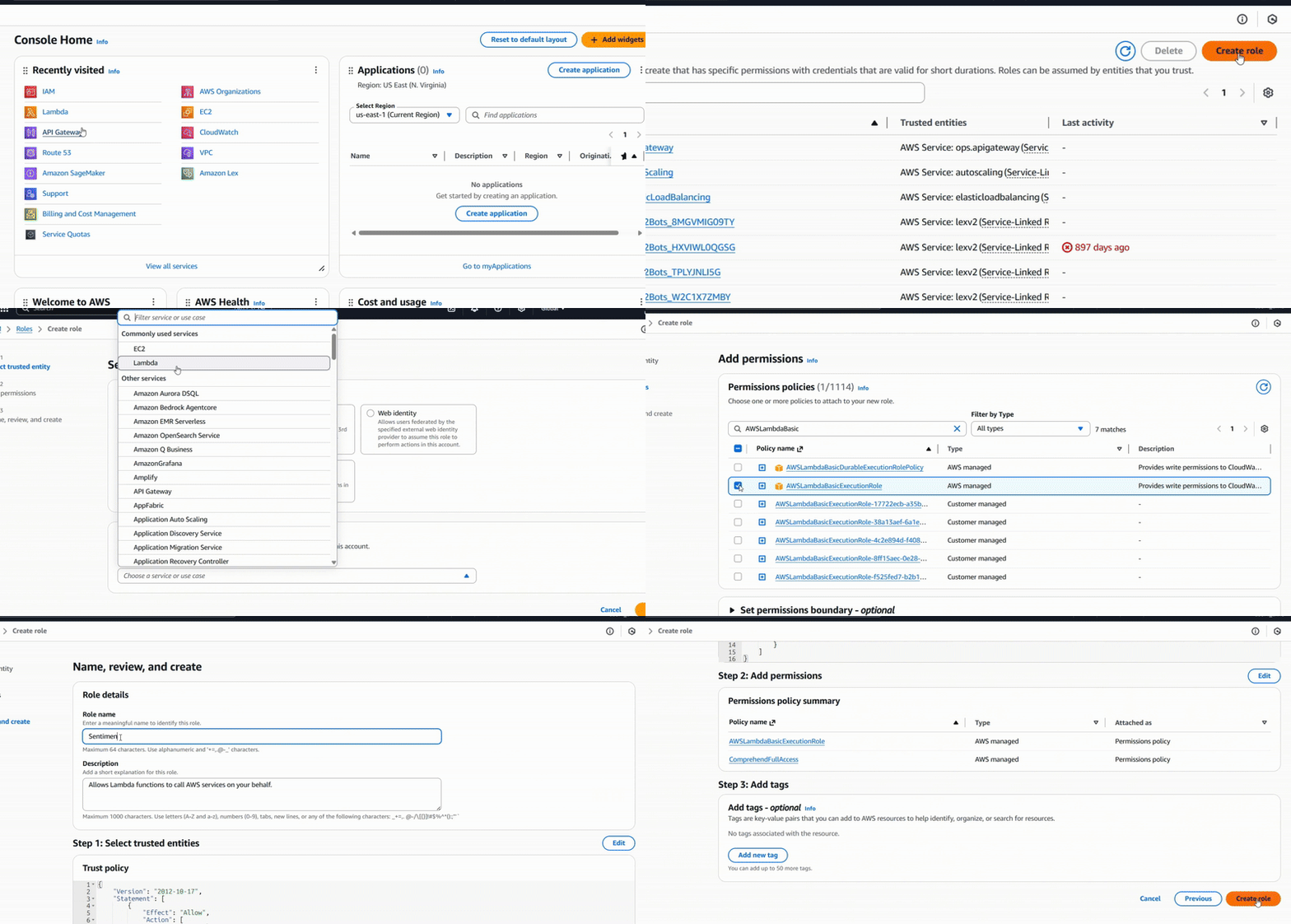
3. Create Public and Private Subnets
-
In the VPC left menu, click Subnets
-
Click Create subnet
-
Select your VPC
-
Create the public subnet
-
Subnet name: Public Subnet
-
Availability Zone: us east 1a
-
IPv4 CIDR block: 192.168.1.0/24
-
-
Click Add new subnet
-
Create the private subnet
-
Subnet name: Private Subnet
-
Availability Zone: us east 1b
-
IPv4 CIDR block: 192.168.2.0/24
-
-
Review both subnets
-
Click Create subnet
-
Confirm both subnets were created successfully
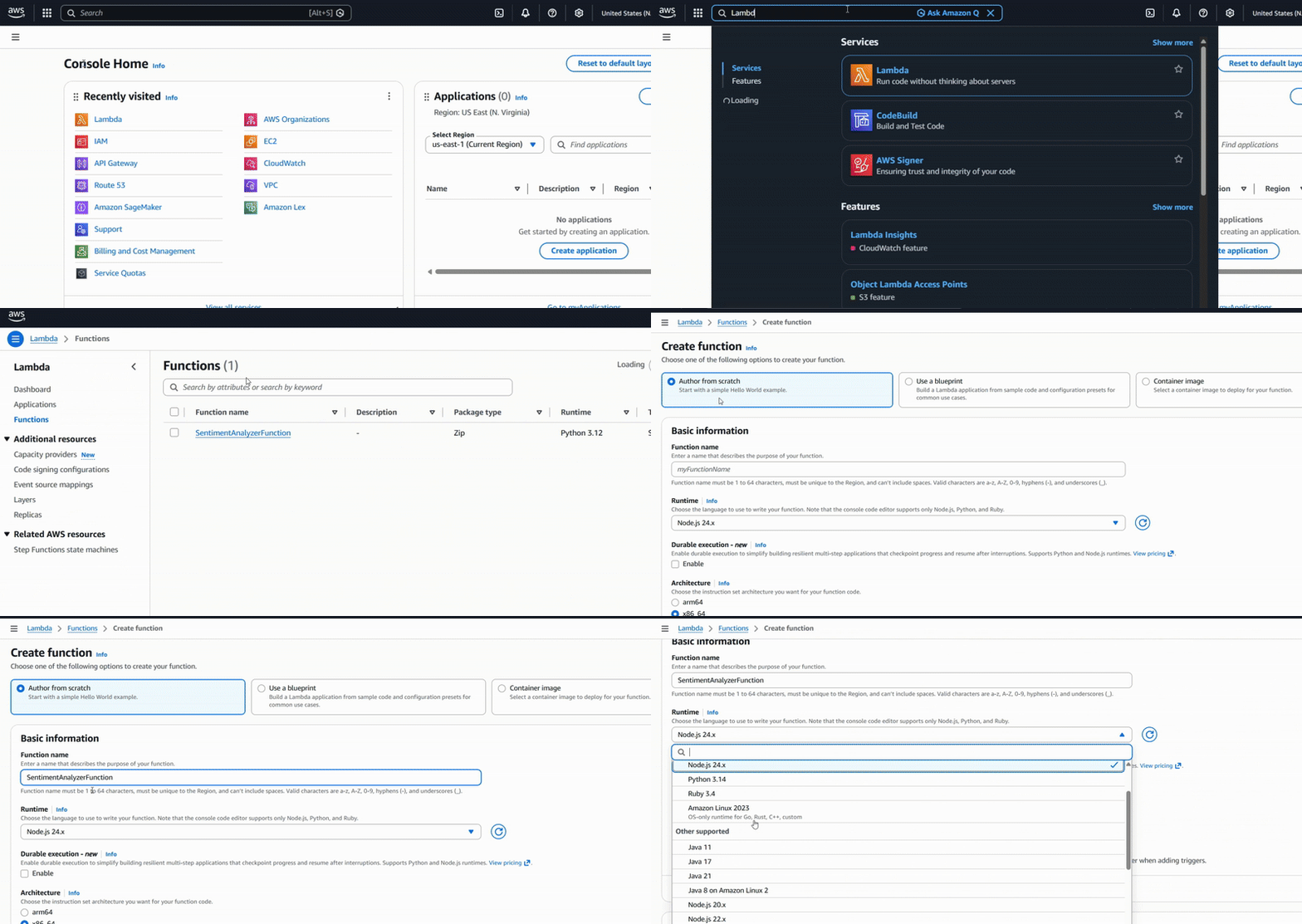
4. Create and Attach the Internet Gateway
-
In the VPC left menu, click Internet gateways
-
Click Create internet gateway
-
Name the Internet Gateway (example: Empower IGW)
-
Click Create internet gateway
-
Select the new Internet Gateway
-
Click Actions and choose Attach to VPC
-
Select your VPC
-
Click Attach internet gateway
-
Confirm the gateway status shows Attached
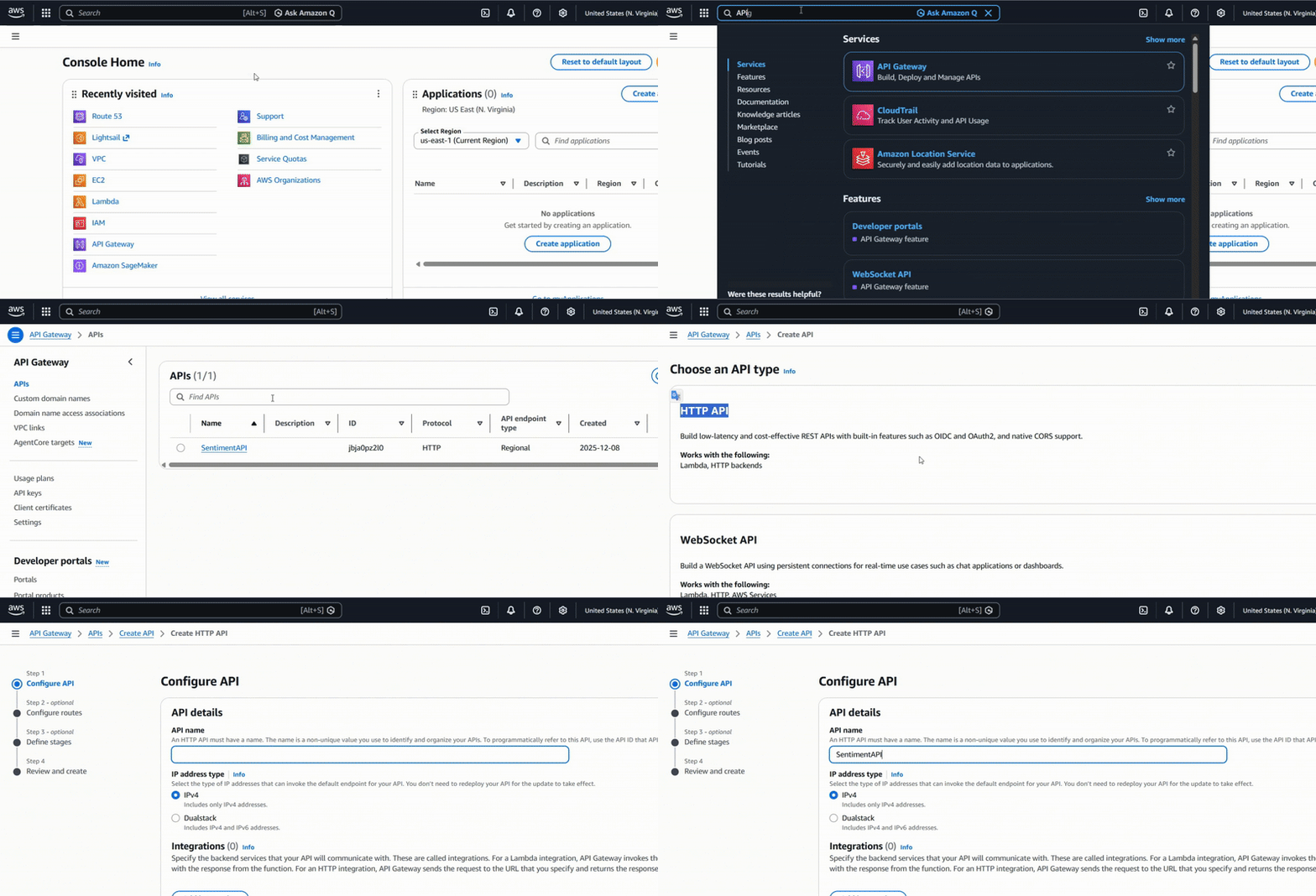
5. Create Route Tables
Create the Private Route Table
-
In the VPC left menu, click Route tables
-
Click Create route table
-
Name it Private Route Table
-
Select your VPC
-
Click Create route table
Create the Public Route Table
-
Click Create route table again
-
Name it Public Route Table
-
Select your VPC
-
Click Create route table
6. Associate Subnets with Route Tables
Associate the Private Subnet
-
Open the Private Route Table
-
Go to Subnet associations
-
Click Edit subnet associations
-
Select the Private Subnet
-
Click Save associations
Configure and Associate the Public Subnet
-
Open the Public Route Table
-
Go to Routes
-
Click Edit routes
-
Click Add route
-
Destination: 0.0.0.0/0
-
Target: Internet Gateway
-
Select your IGW
-
Click Save changes
-
Go to Subnet associations
-
Click Edit subnet associations
-
Select the Public Subnet
-
Click Save associations
Congratulations! You made your awesome AWS VPC Project!
You have successfully created a custom AWS VPC with public and private subnets, attached an Internet Gateway, and configured route tables to control network traffic. This setup mirrors real world AWS networking foundations and serves as a base for EC2, RDS, and secure application deployments.